Work with governed Assets
Find an authorized Asset, verify its exact release, and use the action defined for its type.
Use this guide when you know the outcome you need and want to find, inspect, and use a governed Asset. If this is your first time in Organizational AI Memory, start with Your first governed journey for the end-to-end product model.
You must be signed in, have access to the relevant Asset, and have at least one usable release. No repository access or deployment setup is required.
Find an Asset
Open Assets in the product navigation. Stay in Available to me when you want to consume a released Asset; Created by me is the owner's workspace and may include private working copies. Search by the task or outcome, then narrow the results by Asset type or change the sort order.
The catalog is actor-specific: it returns the latest non-withdrawn exact release that the current identity may use. Each card identifies the type, human owner, sharing state, current exact version, and updated time. Skills also expose the current user's Enabled preference. A missing item is not evidence that the Asset exists; the catalog does not disclose denied candidates.
Verify the exact release
Open a result and check the title, Asset type, summary, and availability. Use the Version selector when your workflow requires a specific release. Expand Version and provenance and verify:
- Coordinate identifies the Asset namespace and slug;
- Released identifies when this immutable release was published;
- Digest identifies the exact release content.
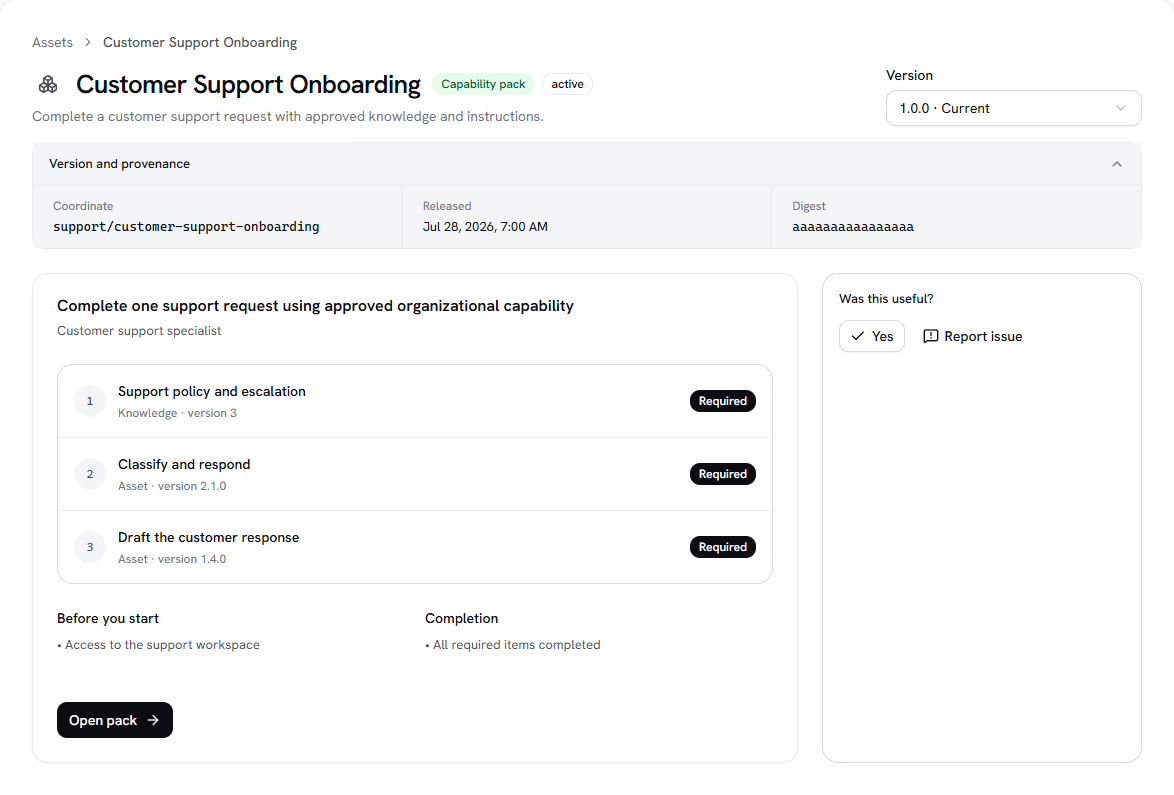
A newer release does not rewrite an older one or change an existing Capability Pack pin. Confirm the selected version again before an action that matters to your workflow.
Use the action for the Asset type
| Asset type | Primary action | Verify before completion |
|---|---|---|
| Prompt Template | Supply validated variables, prepare the prompt, and explicitly confirm any external model run. | Grounding uses only authorized Knowledge, and the receipt identifies the release digest and model route. |
| Work Instruction | Follow the ordered guidance and acknowledge the exact release. | Required checks, expected results, and escalation guidance are complete. |
| Capability Pack | Open the Pack, work through accessible pinned items, and record actor-scoped progress. | The outcome, prerequisites, item versions, and access-gap state are understood. |
| Skill | Inspect the package before installing it through the authenticated CLI. | Package integrity, manifest, file digests, selected adapter, and exact install command match your project. |
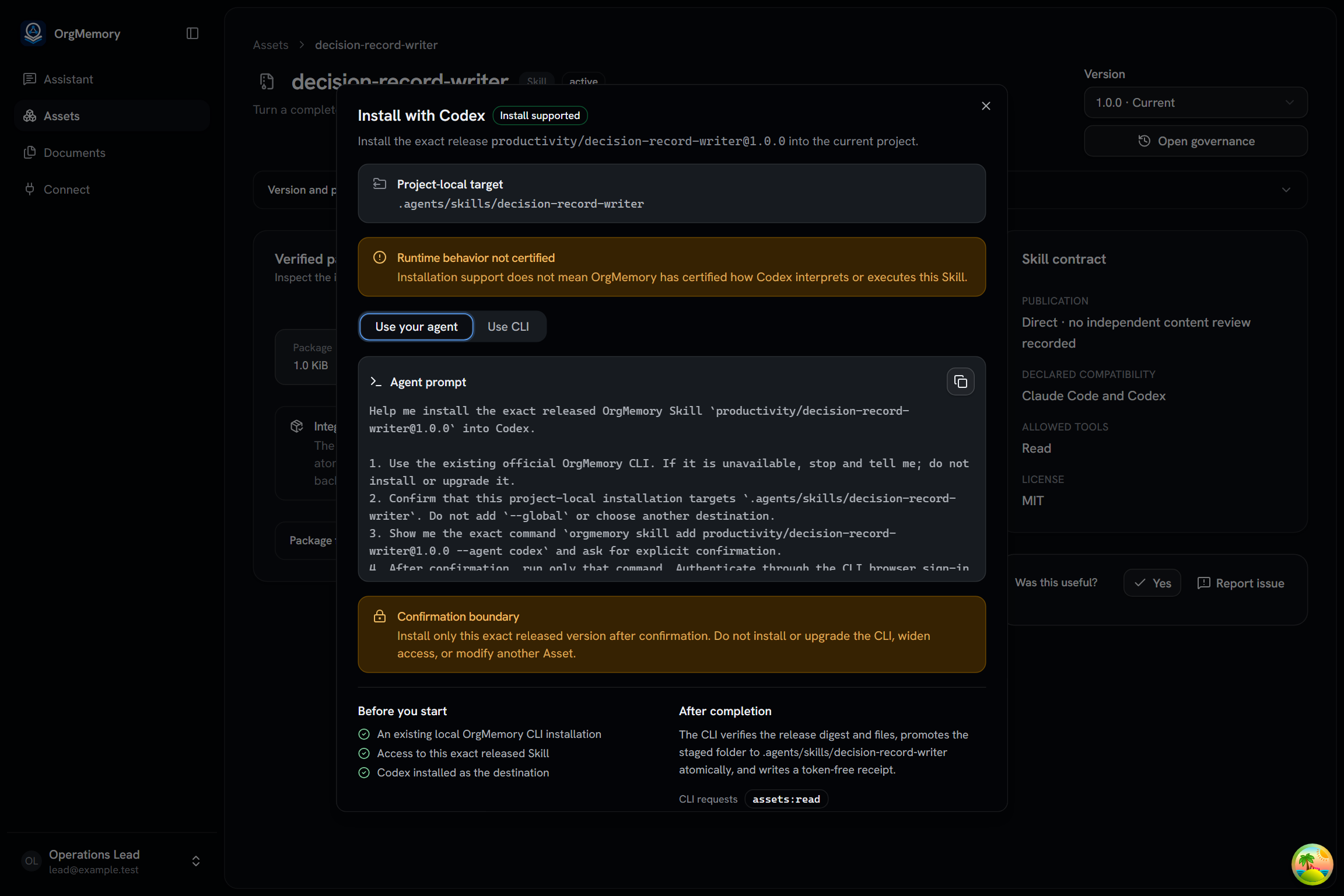
On a released Skill, select Install with..., then choose Claude Code or
Codex. OrgMemory lists only the adapters implemented by the official CLI. The
selected dialog shows the project-local target and pins one exact
namespace/slug@version command. Use your agent copies bounded
target-specific instructions; Use CLI exposes that command directly.
Verified package means the CLI verifies archive and file integrity.
Install supported means a deterministic adapter exists for the selected
target. Runtime behavior not certified means OrgMemory does not claim how
that target interprets or executes the Skill. The pinned npx command may
download the exact CLI into npm's cache, but neither path installs it globally
or grants broader authorization.
After installation, keep the local copy explicit and inspectable:
npx --yes @orgmemory/cli@0.1.1 skill verify <namespace>/<slug> --agent codex
npx --yes @orgmemory/cli@0.1.1 skill update <namespace>/<slug> --to <exact-version> --agent codex
npx --yes @orgmemory/cli@0.1.1 skill remove <namespace>/<slug> --agent codex
Verification is offline and checks the entire installed file tree. Update
re-authorizes one exact release of the same Skill. Removal is allowed only
for an unchanged, verifiable installation; the CLI never force-deletes local
edits. A public npx command is shown only after the exact CLI package
version has been verified in the registry.
External model calls and state-changing actions require explicit confirmation. Merely opening an Asset does not run a model, install a Skill, or complete a Pack item.
Handle an unavailable release
- If an Asset is absent from the catalog, check your search and filters, then ask an administrator or Asset owner to verify access without assuming the Asset exists.
- If the detail page has no usable release, ask the owner to publish the working copy or share it with the intended Viewer audience. The compatible reviewed API path can also produce a release, but no current organization-level policy forces it.
- If a compatible historical release is Deprecated, prefer a current release unless a controlled workflow requires the older exact version.
- A Withdrawn release cannot start new consumption. Historical evidence and existing pins remain identifiable, but they do not make the release usable again.
- If access changes while you are working, refresh or use the available recheck action. A Capability Pack reports denied components as one opaque access gap without exposing their titles, types, or count.
Record the outcome
Use Yes or Report issue on the Asset detail page. Feedback is attached to the exact release you used and does not modify that immutable release. For a Capability Pack, mark an item complete only after performing its required work; progress belongs to your current actor.
Continue
- Learn how authorization protects secure retrieval and GraphRAG.
Last updated on